MOV files are common in camera and phone workflows. Some players or editors accept the container but cannot decode the particular video codec inside it. An MP4 copy using H.264 and AAC is a useful compatibility test.
Convert MOV in Three Steps
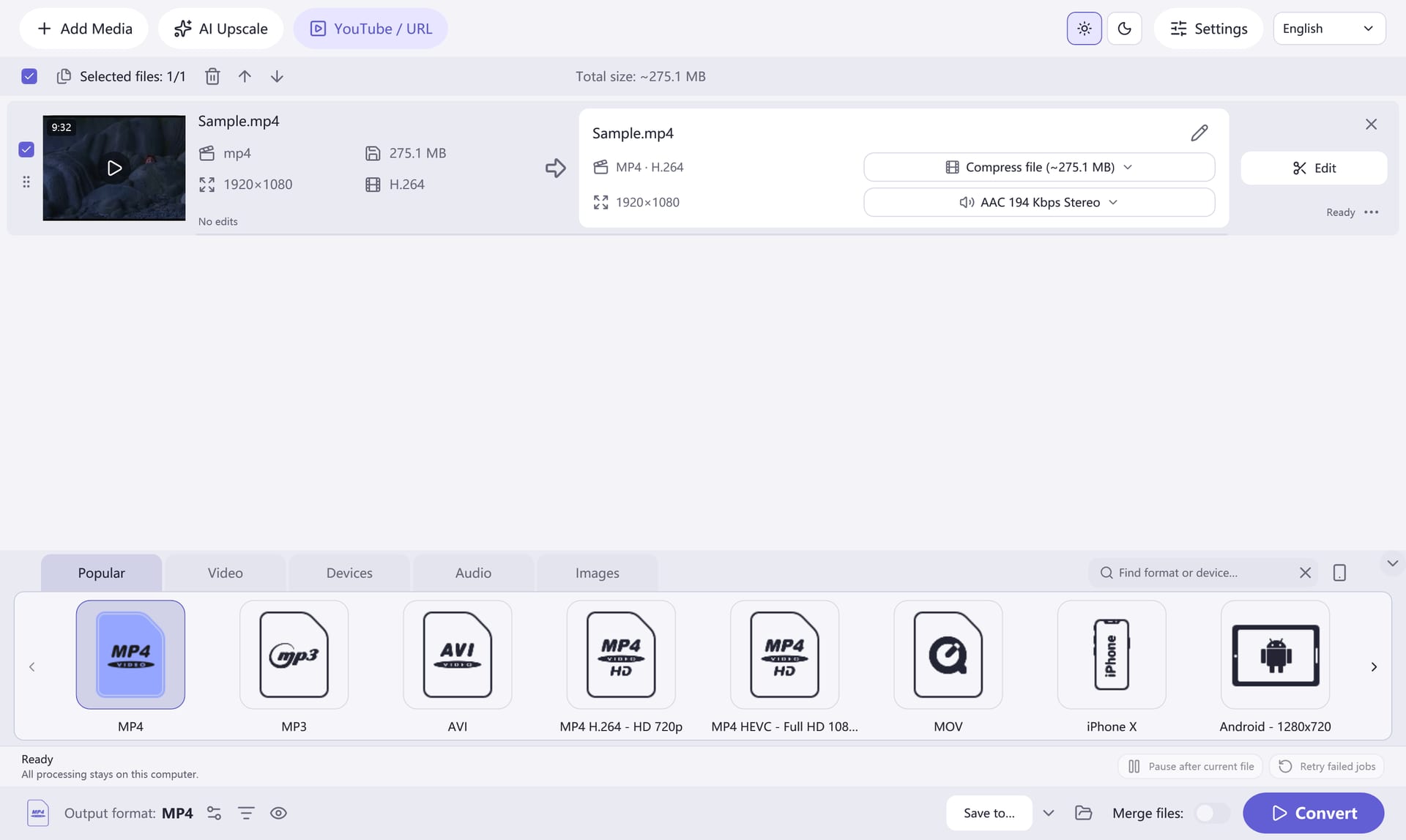
- Add your MOV file. Open the Windows app and add the source video. You can queue several files if you need to prepare a group.
- Choose MP4. Pick an MP4 preset, using H.264 video and AAC audio for a broad compatibility starting point. Select an output folder you can find easily.
- Choose Convert. Let processing finish, then play the output in your intended player or import it into your editing app.
Check Before Converting a Whole Folder
If the original is HDR, high resolution or uses a high frame rate, check the converted picture on the screen where you will watch it. Preserve the source so you can return to its original image and metadata.
Convert one short file first when you are choosing settings for a new device or workflow. Compare picture, sound, duration and file size with what you expected. If you need a smaller output, resolution and bitrate are useful controls, but lower values can reduce visual quality.
Keep Your Original
A converted copy is useful for sharing or playback, while the source remains valuable for future edits. Save them in clearly named folders and check the result before deleting anything.
Read the complete video conversion guide for a closer look at output settings, folders and playback checks. To remove unwanted footage, trim your clip before exporting.