Choose an output format supported by your player or editing app. The converter offers several video formats and presets, so you can match the output to the way you plan to use it.
MP4 is a useful starting point when a video will not open in your usual player or needs to move into another workflow. The container alone does not guarantee compatibility: the video and audio codecs inside it matter too. For many everyday uses, choose MP4 with H.264 video and AAC audio, then test the result on the device or app that will play it.
1. Add Your Video Files
Open Any Video Format Converter Free and add the video files you want to convert. You can prepare several files in the queue. Review the filenames before continuing, and keep the original files as your source copies.
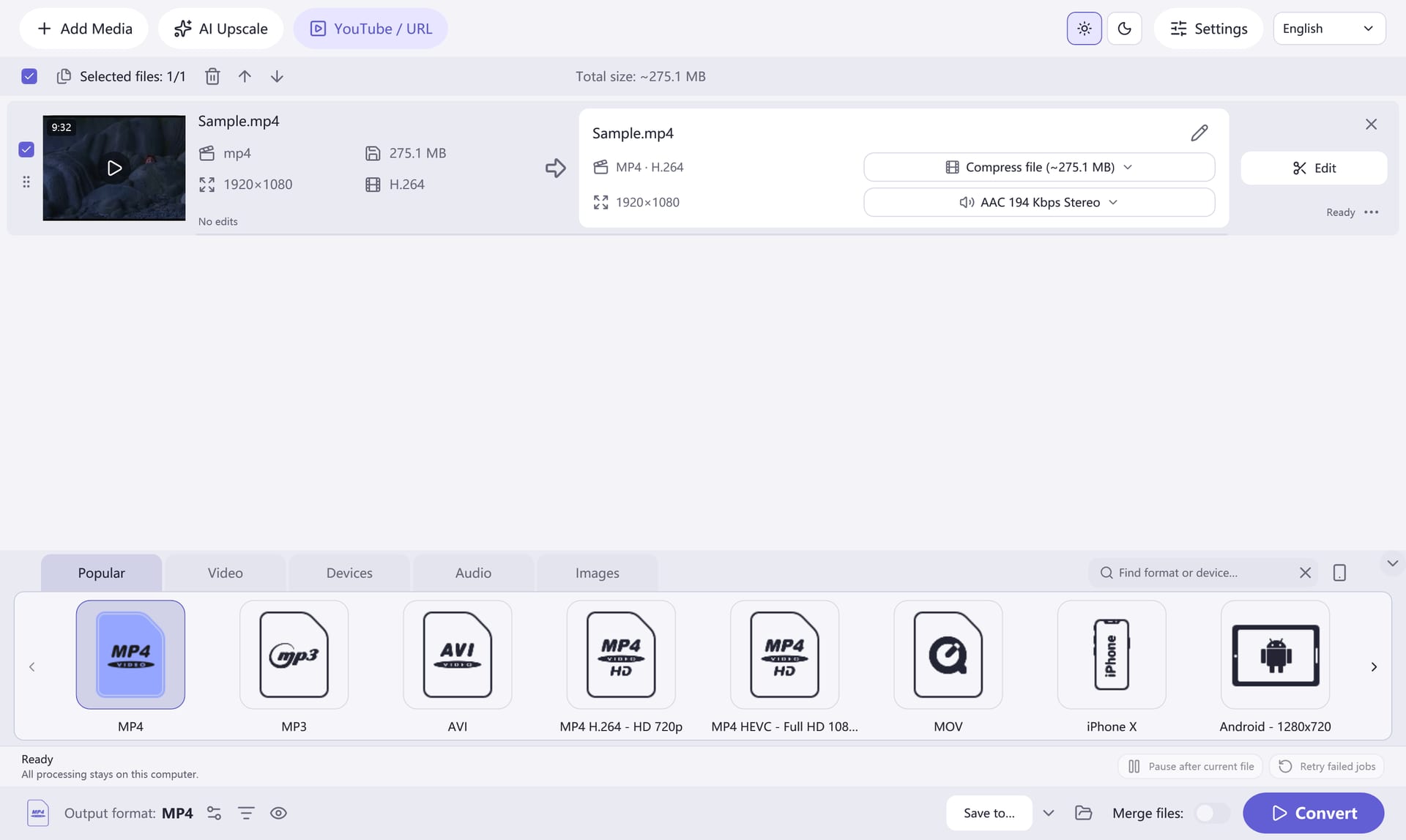
2. Choose an Output Format
Select an output format and a preset that suits your destination. For everyday playback, MP4 with H.264 video and AAC audio is a useful example. A preset gives you a practical starting point; output availability can depend on the input. If the receiving player has specific requirements, compare its supported codec, resolution and frame rate with your chosen settings.
Open the output settings only when you need to adjust them. A higher bitrate can increase file size, and increasing the resolution cannot restore detail that the source did not contain. For an older or lower-resolution recording, staying close to its source dimensions is a sensible first test.
3. Select an Output Folder
Choose a folder with enough free space for the converted files. Use a destination that is easy to recognize, especially if the source folder contains many recordings. If you have queued multiple videos, check the selected output before you start.
4. Convert, Then Check Playback
Choose Convert and let the queue finish. Open a converted file in the player or editing app you intend to use. Check the picture, sound and any subtitles you need. Test a short clip first when you are uncertain about compatibility or output size.
Common MP4 Conversion Guides
If MP4 fits your next step, start with one of these source-specific guides.
- MOV to MP4 for camera and phone clips.
- MKV to MP4 for video-library files.
- AVI to MP4 for older recordings.
- WMV to MP4 for Windows archives.
Need just one part of a recording? Trim the clip before conversion.